
Chad37 0.2
MIDI controller firmware for the M-Vave SMK-37, with your own chords on the pads
User guide · Try it online · Discord · Source · What's new
Install from your browser
This browser can't install it. Open this page in Chrome or Edge on Windows, macOS, Linux or Android. Safari, Firefox and iPhone/iPad don't allow it.
- Plug the SMK-37 into this computer with a USB data cable and switch it on.
- Quit everything that uses the keyboard: your DAW, synth apps, M-Vave's MIDI Suite, other browser tabs.
- Press Find my keyboard. The browser asks to control MIDI devices: allow it.
- Check the model it found, then press Install. Don't unplug the keyboard while it writes (a minute or two).
Next: the user guide shows what every button, knob and pad does.
Details
What it looks like
Play a chord on the keys and the screen names it, with its notes lit. Press SEQ REC and tap a pad, and that chord is on the pad from then on. Easy Chord plays full chords from single keys: a root, plus a key to its left for minor, 7th and more.
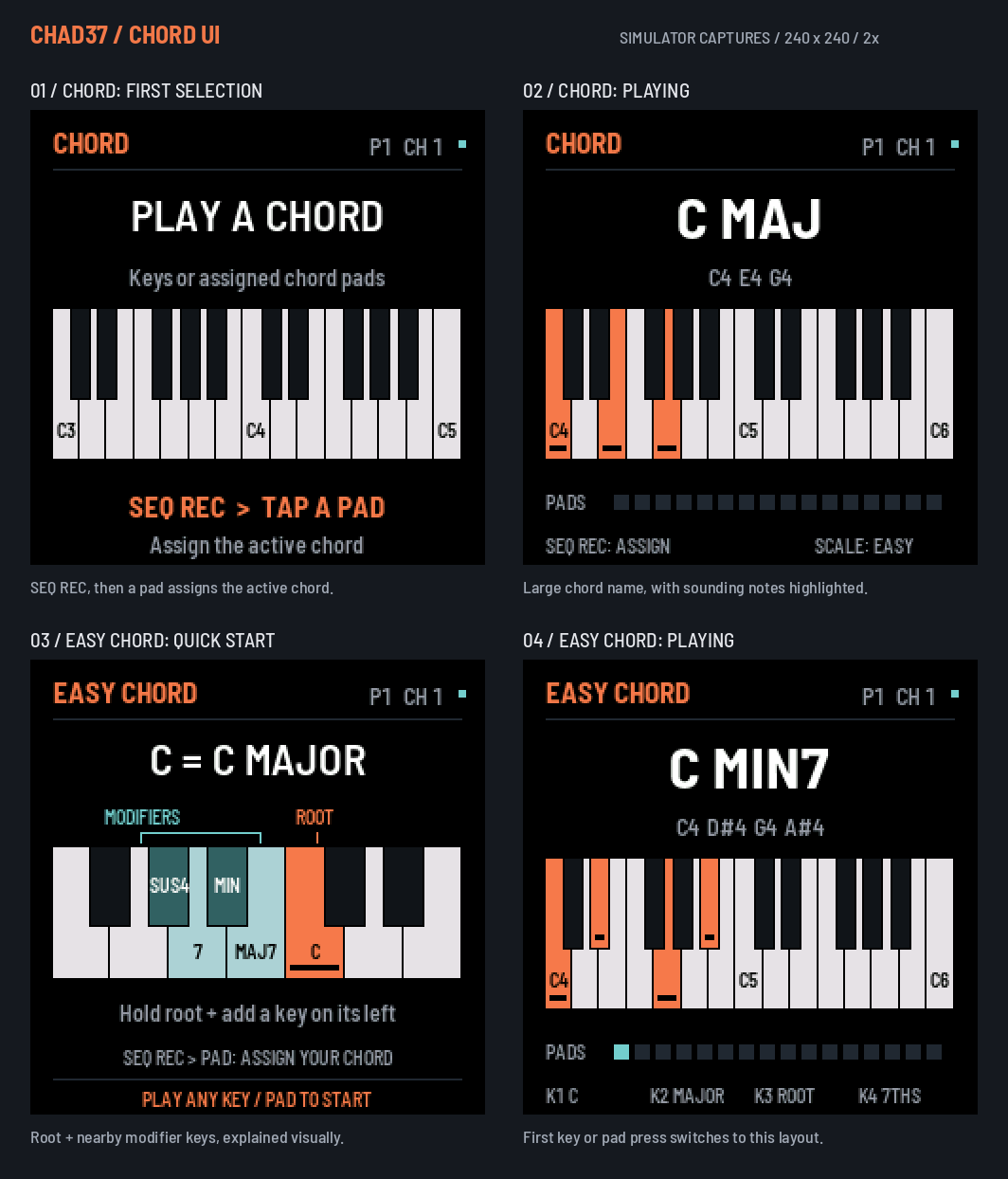
Try Chad37 in the simulator: an SMK-37 in your browser, running Chad37, with nothing to install.
Before the first install
The first install clears the stock firmware's settings, such as your knob and pad MIDI assignments. Write them down or take photos of them first. Your calibration (keys, wheels, pads) is kept. Updating from one Chad37 to a newer one keeps your presets, chord banks and settings.
| Keyboard | Status |
|---|---|
| SMK-37 Elite | In daily use |
| SMK-37 Pro | Tested by a user |
| MKE-P37 | Not tried yet: experimental. Please tell us how it goes. |
The page picks the right package for your model and checks it before anything is written. A package for another model is never installed.
If something goes wrong
| What you see | What to do |
|---|---|
| Keyboard not found | Quit every program using the keyboard, check the cable carries data, and try again. On Windows, only one program at a time can use a MIDI device. |
| MIDI wasn't allowed | Click the icon at the left of the address bar, allow MIDI devices, and reload the page. |
| It stopped part way (cable out, computer asleep) | Plug back in and press Find my keyboard again. The keyboard waits in update mode, even after being switched off, and the page finishes the install. |
| The computer still shows the old name | Unplug the keyboard and plug it back in. On Windows, the old name can stay until you remove the device in Device Manager. |
Going back to stock
M-Vave's own web workbench puts their firmware back, also from Chrome or Edge:
- Open open.m-vave.com (opens in a new tab) and choose your keyboard's page.
- Tick Force flash, click Restore factory V16, and confirm the target (for an Elite,
SMK-37 Elite_016).
More
User guide: every control, mode and setting.
Release notes and downloads, with the command-line installer for those who prefer it (install guide).
Simulator: try Chad37 in your browser before you install it.
Discord: ask questions, share what you make, and hear what's coming next.
Sponsors


Chordcade: play chords with the game controller you already
own.
Ponywolf: retro gaming, reimagined.